
logotype
  • Home
  • News
  • Product dan Services
    • Zimbra Mail Server
      • Excellent Managed Services Email
      • Lisensi Zimbra NE
      • Support dan Maintenance
      • MX Backup & ASAV
      • SMTP Relay
    • Proxmox
      • Proxmox Virtual Environment
      • Proxmox Mail Gateway
      • Proxmox Backup Server
    • XCP-ng
    • Red Hat Enterprise Linux
    • Ubuntu Pro
    • Nakivo Backup & Recovery
    • Vinchin Backup & Recovery
    • Lisensi
      • Proxmox Mail Gateway
      • Lisensi Zimbra Network Edition
      • Lisensi Nakivo Backup & Recovery
      • Subscription Zoom
    • Buku Training Mandiri
      • Buku Training Mandiri
      • Ebook Training Mandiri
    • Cloud & Hosting
      • Excellent Managed Services Email Server
      • MX Backup/Anti Spam & Anti Virus
      • SMTP Relay & Mail Gateway
      • Excellent Mail Hosing
    • SSL Sertifikat
  • Training
  • Insight
  • About Us
  • Contacts
logotype
logotype
  • Home
  • News
  • Product dan Services
    • Zimbra Mail Server
      • Excellent Managed Services Email
      • Lisensi Zimbra NE
      • Support dan Maintenance
      • MX Backup & ASAV
      • SMTP Relay
    • Proxmox
      • Proxmox Virtual Environment
      • Proxmox Mail Gateway
      • Proxmox Backup Server
    • XCP-ng
    • Red Hat Enterprise Linux
    • Ubuntu Pro
    • Nakivo Backup & Recovery
    • Vinchin Backup & Recovery
    • Lisensi
      • Proxmox Mail Gateway
      • Lisensi Zimbra Network Edition
      • Lisensi Nakivo Backup & Recovery
      • Subscription Zoom
    • Buku Training Mandiri
      • Buku Training Mandiri
      • Ebook Training Mandiri
    • Cloud & Hosting
      • Excellent Managed Services Email Server
      • MX Backup/Anti Spam & Anti Virus
      • SMTP Relay & Mail Gateway
      • Excellent Mail Hosing
    • SSL Sertifikat
  • Training
  • Insight
  • About Us
  • Contacts
logotype
  • Home
  • News
  • Product dan Services
    • Zimbra Mail Server
      • Excellent Managed Services Email
      • Lisensi Zimbra NE
      • Support dan Maintenance
      • MX Backup & ASAV
      • SMTP Relay
    • Proxmox
      • Proxmox Virtual Environment
      • Proxmox Mail Gateway
      • Proxmox Backup Server
    • XCP-ng
    • Red Hat Enterprise Linux
    • Ubuntu Pro
    • Nakivo Backup & Recovery
    • Vinchin Backup & Recovery
    • Lisensi
      • Proxmox Mail Gateway
      • Lisensi Zimbra Network Edition
      • Lisensi Nakivo Backup & Recovery
      • Subscription Zoom
    • Buku Training Mandiri
      • Buku Training Mandiri
      • Ebook Training Mandiri
    • Cloud & Hosting
      • Excellent Managed Services Email Server
      • MX Backup/Anti Spam & Anti Virus
      • SMTP Relay & Mail Gateway
      • Excellent Mail Hosing
    • SSL Sertifikat
  • Training
  • Insight
  • About Us
  • Contacts
Blog Post
VMWare

Belajar Teknologi Virtualisasi (2) : Instalasi VMWare vSphere Hypervisor™ ESXi

September 10, 2011by Masim Vavai Sugianto

Catatan : Tulisan ini merupakan bagian kedua dari seri tulisan “Belajar Teknologi Virtualisasi : VMWare vSphere Hypervisor™ ESXi”. Tulisan pertama dapat dibaca disini : Belajar Teknologi Virtualisasi (1) : VMWare vSphere Hypervisor™ ESXi

Instalasi VMWare ESXi sebenarnya sangat mudah kalau sudah tahu caranya (ya iyalah 😛 ). Hanya butuh beberapa langkah mengikuti wizard yang diperlukan.

Yang perlu diperhatikan adalah bahwa proses instalasi akan menghapus data harddisk, jadi pastikan data yang ada sudah dibackup terlebih dahulu. Jauh lebih baik jika fungsinya didedikasikan untuk server, harddisk yang digunakan merupakan harddisk baru 🙂

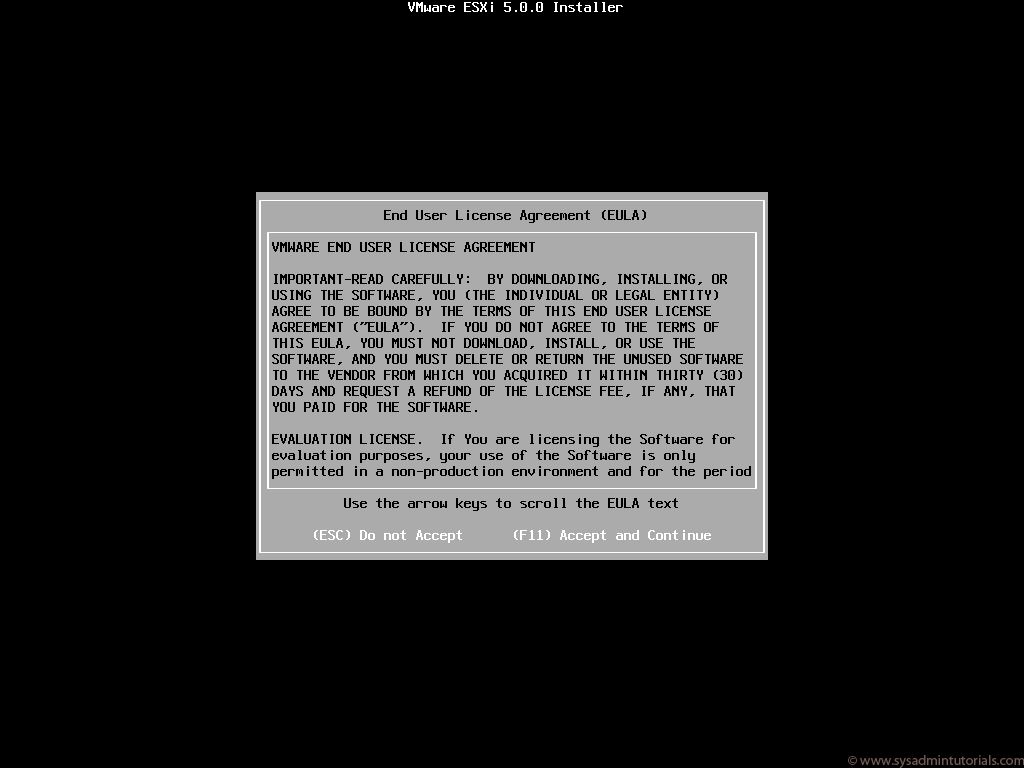
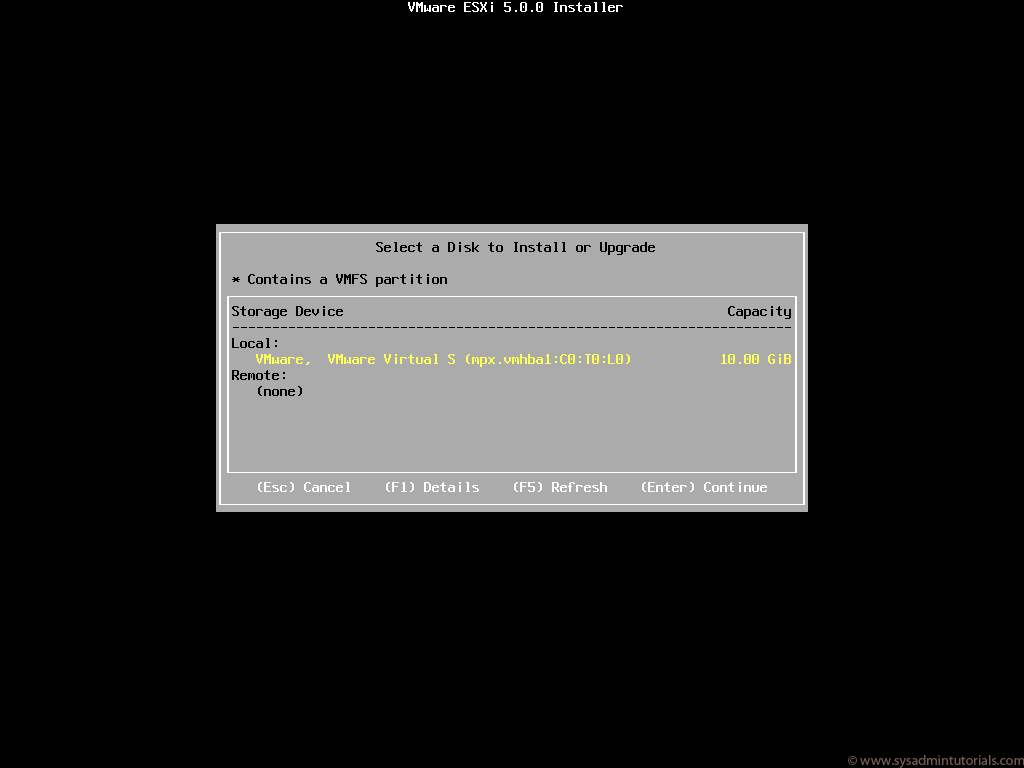
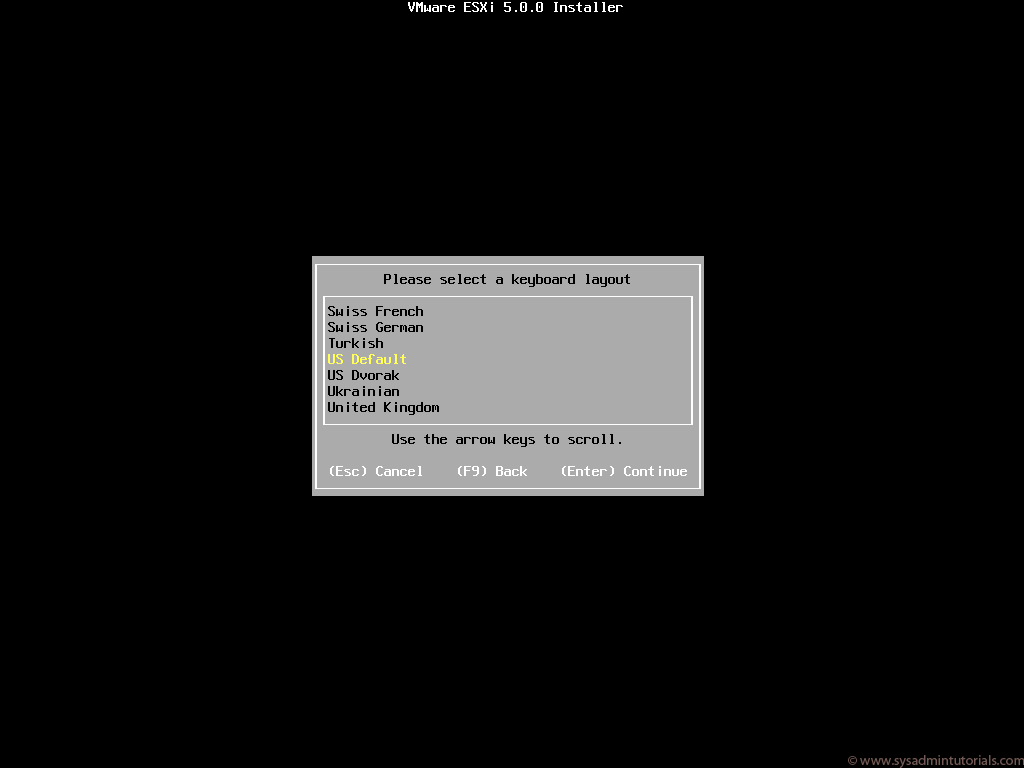
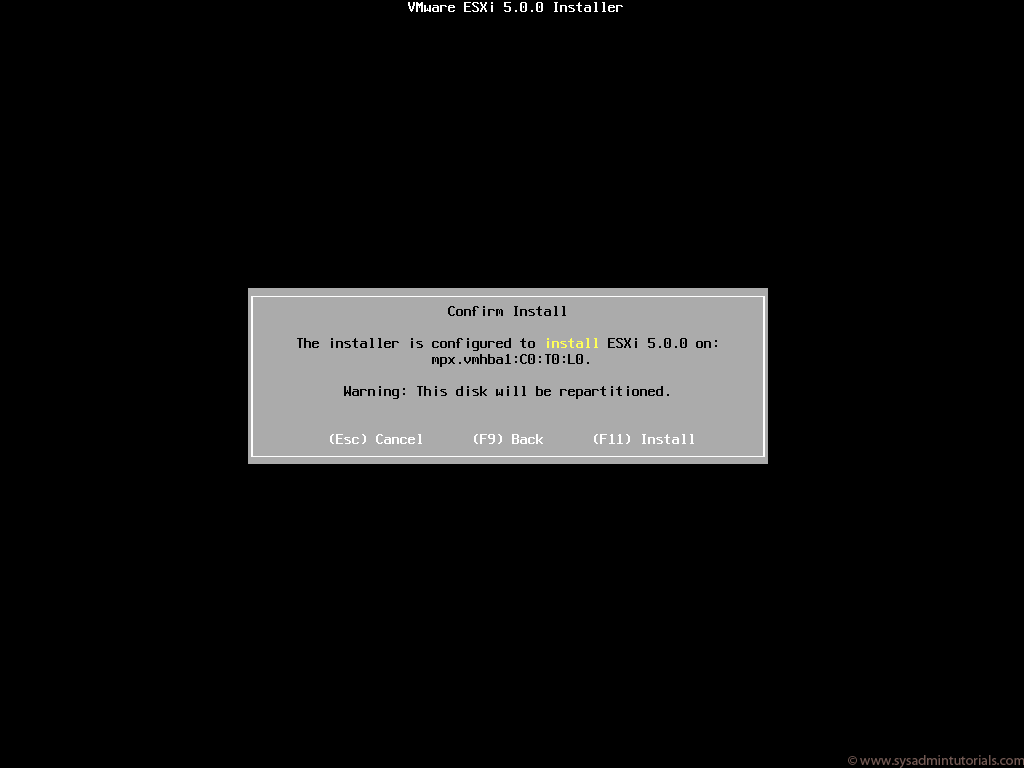
Berikut adalah langkah-langkah instalasi VMWare ESXi 5.0 :

  1. Download file ISO VMWare ESXi (penjelasan detailnya ada pada bagian pertama tulisan ini), kemudian burn menggunakan CD burner. Setelah selesai, booting komputer dengan CD VMWare ESXi berada di dalam CD/DVD ROM yang sudah diset sebagai media booting pertama
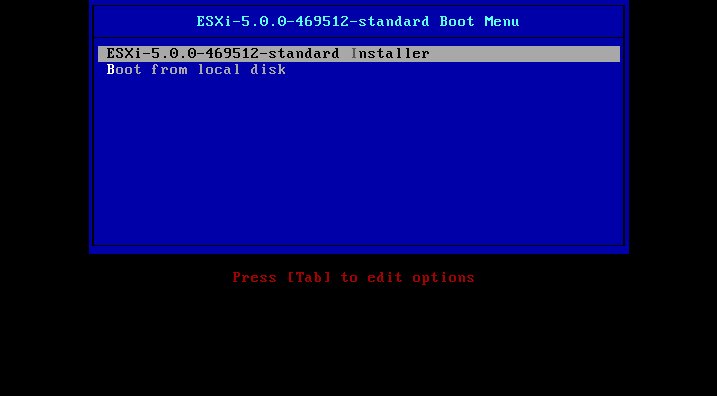
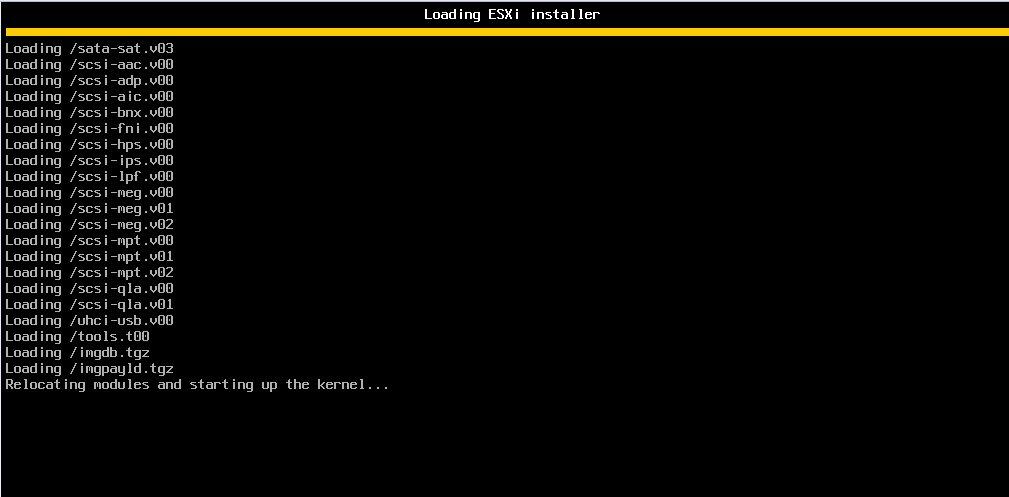
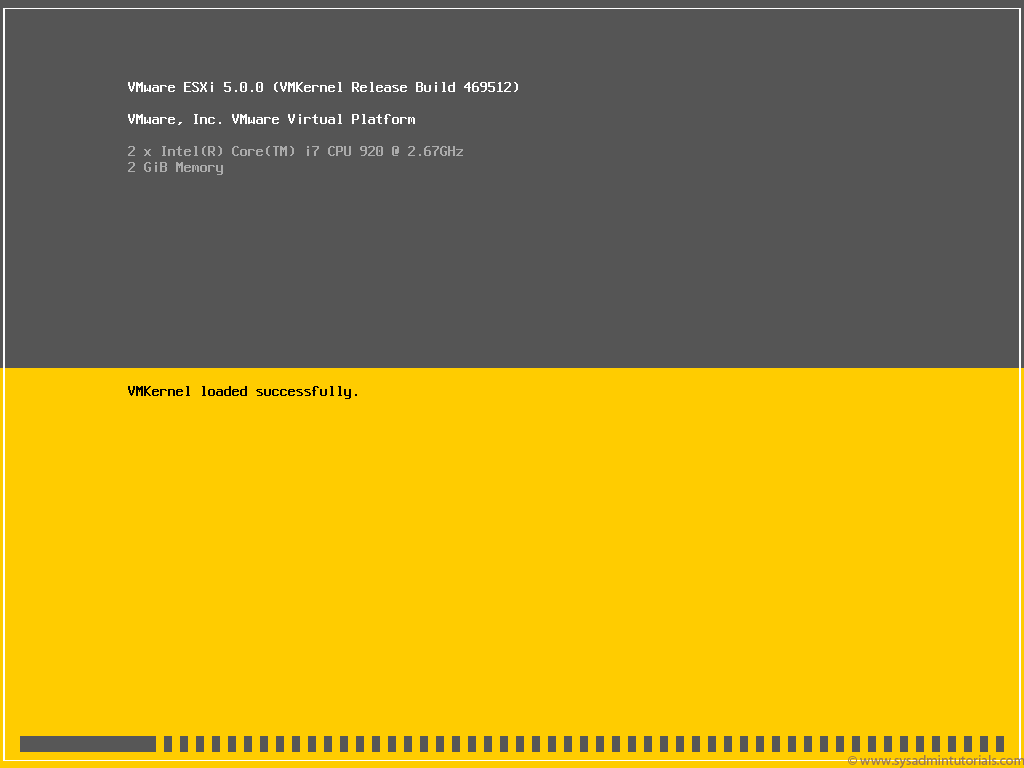
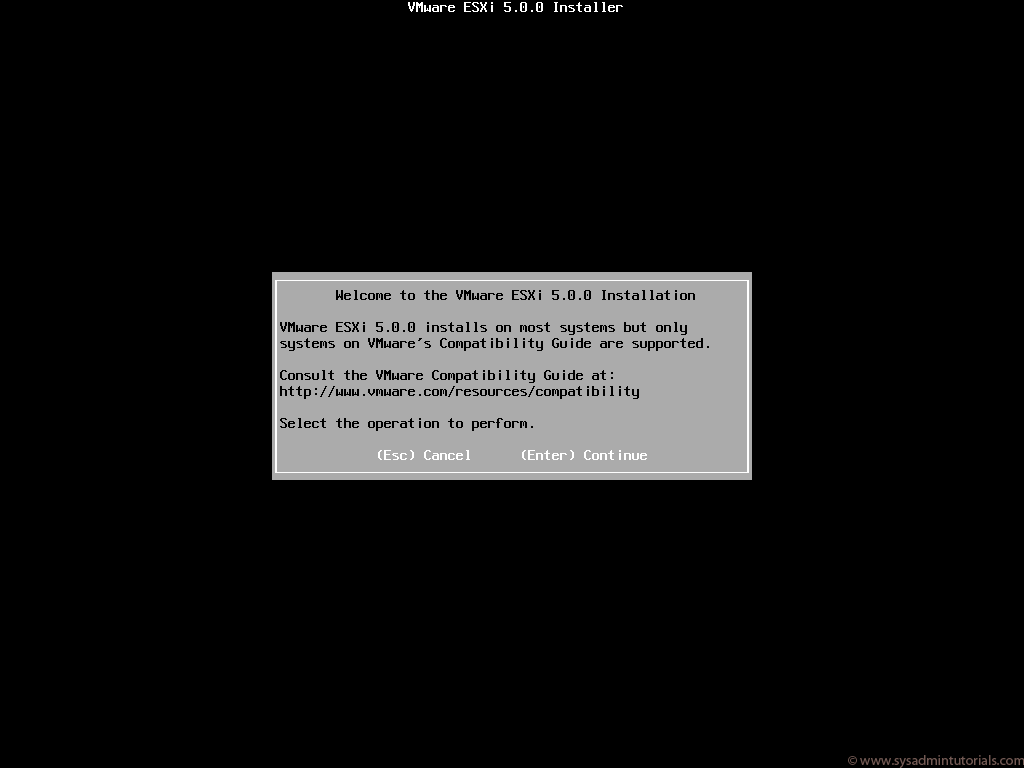
  2. ESXi akan menampilkan pesan ekstrak file iso. Tunggu sampai ada permintaan respon. Untuk proses instalasi dapat mengikuti pesan yang muncul pada tampilan wizard, misalnya untuk melakukan proses instalasi bisa menekan tombol ENTER sedangkan untuk membatalkannya bisa menekan tombol ESC.
    `
    `
    `
    `
    `
    `
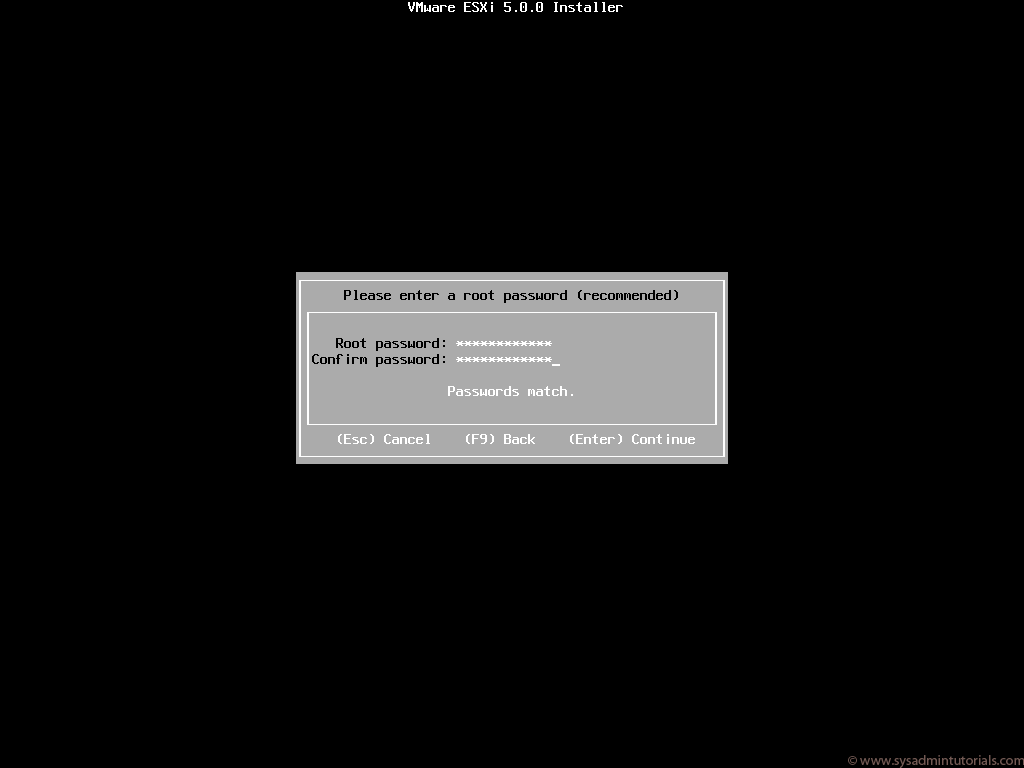
  3. Masukkan password untuk host VMWare ESXi. Password ini akan digunakan untuk login pada VMWare Infrastructure Client (VI Client)
    `
    `
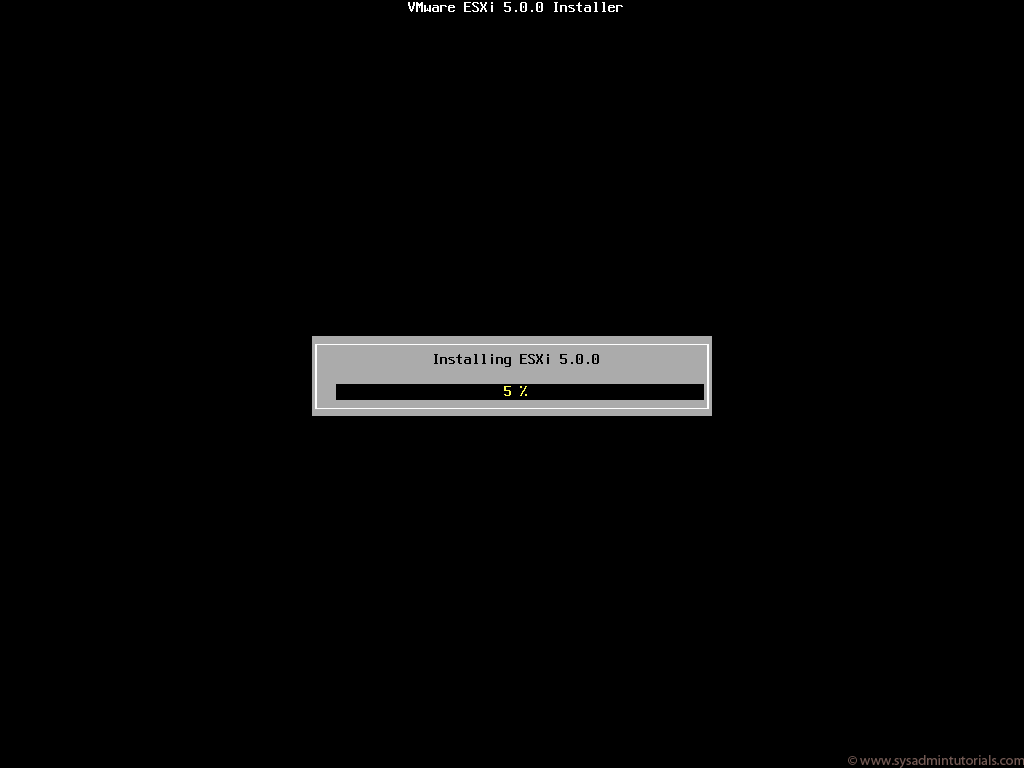
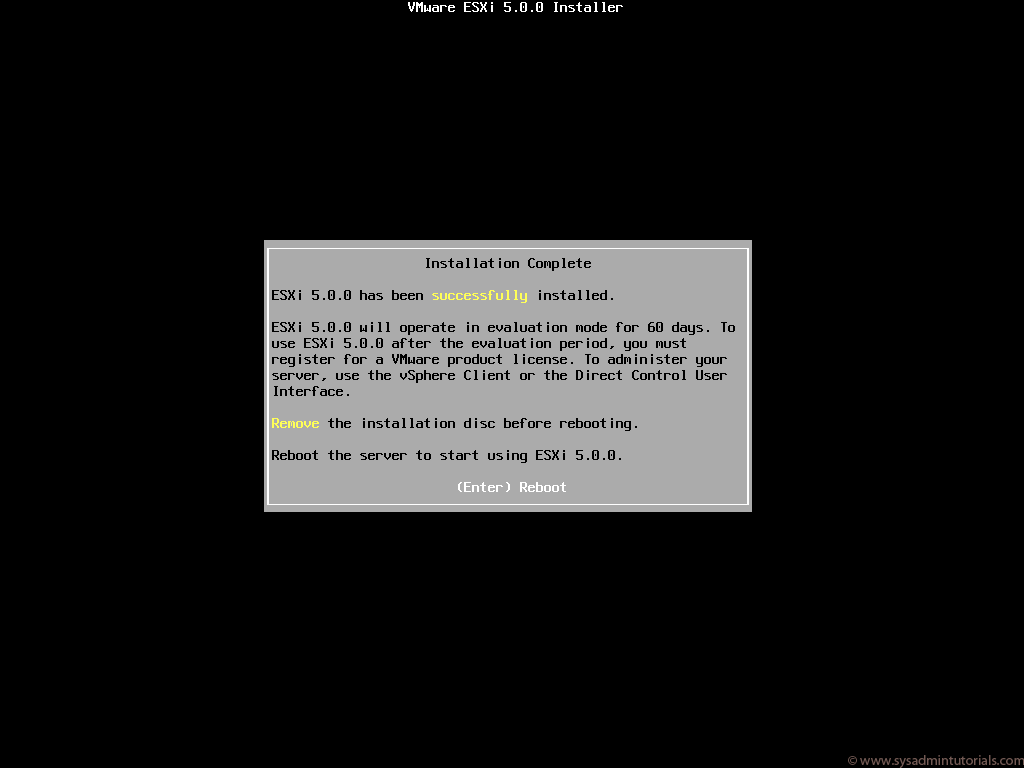
  4. Setelah proses instalasi selesai, sistem akan melakukan restart. Jangan lupa keluarkan CD instalasi dari CD/DVD ROM.
    `
    `
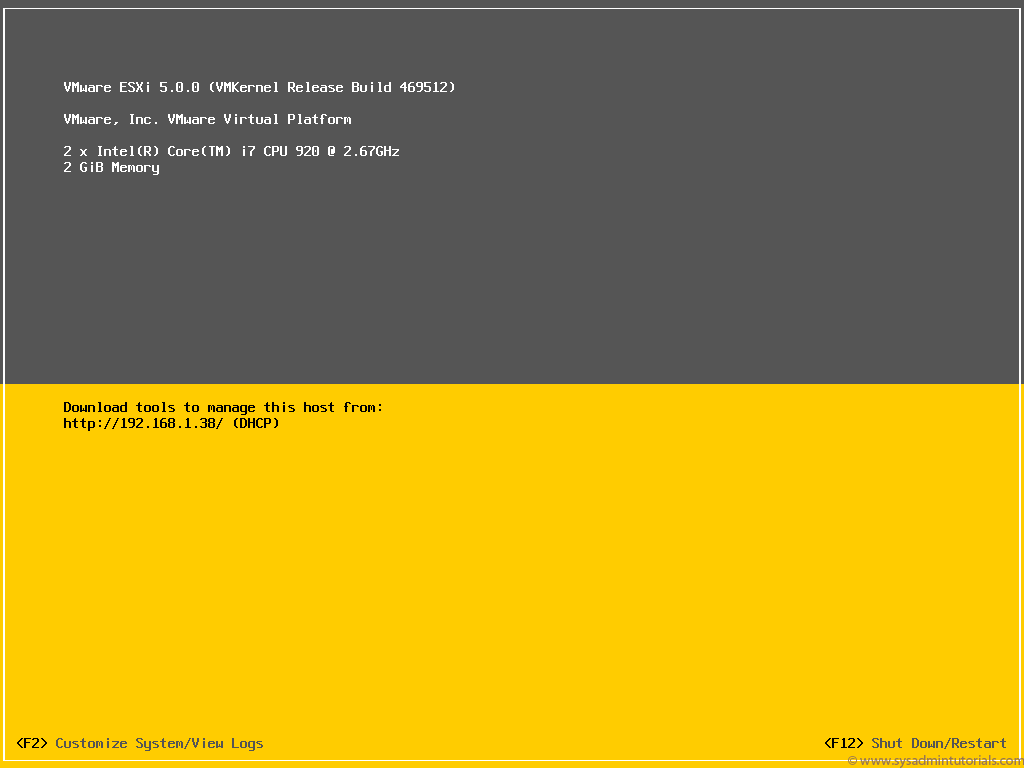
Untuk melakukan manajemen instalasi dan konfigurasi virtual machine pada VMWare ESXi, kita akan menggunakan VMWare Infrastructure Client. Caranya, buka alamat URL http://IP-Address-ESXi, misalnya http://192.168.1.104. Alamat URL tersebut akan menampilkan penjelasan mengenai akses VMWare ESXi melalui klien, baik menggunakan media VMWare Infrastructure Client maupun melalui akses Command Line.

Tulisan ini akan berlanjut ke bagian berikutnya mengenai instalasi dan penggunaan VMWare Infrastructure Client untuk melakukan manajemen virtualisasi berbasis VMWare vSphere Hypervisor™ (ESXi)
ESXi Virtualization VMWare VSphere
Prev

Roadmap untuk Proxmox Versi 2.0

Next

Menggunakan ZeXtras untuk Migrasi Zimbra Mail Server

Related Posts

markas-premier1-1024×768.jpg
BlogBlog & ResourcesTrainingVMWare
May 3, 2018

Tips Membangun Labs VMware vSphere : Update 2018

Read more
Blog & ResourcesEventHeadlineTrainingVMWare
September 24, 2012

Training VMWare vSphere Fundamental & Medium (High Availability), 3-4 Oktober 2012

Read more
nakivo1
BlogBlog & ResourcesEventHeadlineNakivoNewsResourceVMWare
September 6, 2019

Solusi Backup VMware vSphere : NAKIVO Backup & Replication

Read more

Leave a Reply

Your email address will not be published. Required fields are marked *

Search
Recent Post
  • Zimbra Daffodil 10.1.16 Rilis: Modern Web App Makin Cerdas, Backup Lebih Hemat Storage, dan Peningkatan Keamanan
  • Live Migration vs High Availability di XCP-ng: Perbedaan dan Skenario Penggunaan
  • Informasi untuk Pelanggan PT. Excellent Infotama Kreasindo : Penyesuaian Kebijakan Masa Berlaku Sertifikat SSL/TLS Menuju Standar Keamanan Global
  • Excellent Infotama Kreasindo: Lingkungan Kerja yang Memberi Ruang untuk Bertumbuh
  • Segudang Benefit dari Dana Buffer: Ketika Kebijakan Berangkat dari Pengalaman
Categories
Archives
Featured image: Belajar Teknologi Virtualisasi (2) : Instalasi VMWare vSphere Hypervisor™ ESXi
Get in Touch

KATEGORI

  • Home
  • Artikel
  • Jadwal
  • Event
  • Berita

LAYANAN

  • Zimbra Mail Server
  • Ubuntu
  • XCP-ng
  • Vinchin
  • ASAV
  • Proxmox
  • RHEL
  • Nakivo
  • SMTP Relay
  • SSL Certificate

KONTAK KAMI

PT. Excellent Infotama Kreasindo, Premier Serenity Blok J12, Jl. KH. Agus Salim No. 40E, Bekasi Jaya, Bekasi Timur, Bekasi 17112, Jawa Barat, Indonesia

TENTANG KAMI

PT. Excellent Infotama Kreasindo merupakan entitas bisnis yang fokus pada layanan komputerisasi seperti implementasi sistem, konsultasi, training/workshop, dan maintenance sistem, terutama migrasi dari sistem Windows ke Linux. more…