logotype
  • Home
  • News
  • Product dan Services
    • Zimbra Mail Server
      • Excellent Managed Services Email
      • Lisensi Zimbra NE
      • Support dan Maintenance
      • MX Backup & ASAV
      • SMTP Relay
    • Proxmox
      • Proxmox Virtual Environment
      • Proxmox Mail Gateway
      • Proxmox Backup Server
    • XCP-ng
    • Red Hat Enterprise Linux
    • Ubuntu Pro
    • Nakivo Backup & Recovery
    • Vinchin Backup & Recovery
    • Lisensi
      • Proxmox Mail Gateway
      • Lisensi Zimbra Network Edition
      • Lisensi Nakivo Backup & Recovery
      • Subscription Zoom
    • Buku Training Mandiri
      • Buku Training Mandiri
      • Ebook Training Mandiri
    • Cloud & Hosting
      • Excellent Managed Services Email Server
      • MX Backup/Anti Spam & Anti Virus
      • SMTP Relay & Mail Gateway
      • Excellent Mail Hosing
    • SSL Sertifikat
  • Training
  • Insight
  • About Us
  • Contacts
logotype
logotype
  • Home
  • News
  • Product dan Services
    • Zimbra Mail Server
      • Excellent Managed Services Email
      • Lisensi Zimbra NE
      • Support dan Maintenance
      • MX Backup & ASAV
      • SMTP Relay
    • Proxmox
      • Proxmox Virtual Environment
      • Proxmox Mail Gateway
      • Proxmox Backup Server
    • XCP-ng
    • Red Hat Enterprise Linux
    • Ubuntu Pro
    • Nakivo Backup & Recovery
    • Vinchin Backup & Recovery
    • Lisensi
      • Proxmox Mail Gateway
      • Lisensi Zimbra Network Edition
      • Lisensi Nakivo Backup & Recovery
      • Subscription Zoom
    • Buku Training Mandiri
      • Buku Training Mandiri
      • Ebook Training Mandiri
    • Cloud & Hosting
      • Excellent Managed Services Email Server
      • MX Backup/Anti Spam & Anti Virus
      • SMTP Relay & Mail Gateway
      • Excellent Mail Hosing
    • SSL Sertifikat
  • Training
  • Insight
  • About Us
  • Contacts
logotype
  • Home
  • News
  • Product dan Services
    • Zimbra Mail Server
      • Excellent Managed Services Email
      • Lisensi Zimbra NE
      • Support dan Maintenance
      • MX Backup & ASAV
      • SMTP Relay
    • Proxmox
      • Proxmox Virtual Environment
      • Proxmox Mail Gateway
      • Proxmox Backup Server
    • XCP-ng
    • Red Hat Enterprise Linux
    • Ubuntu Pro
    • Nakivo Backup & Recovery
    • Vinchin Backup & Recovery
    • Lisensi
      • Proxmox Mail Gateway
      • Lisensi Zimbra Network Edition
      • Lisensi Nakivo Backup & Recovery
      • Subscription Zoom
    • Buku Training Mandiri
      • Buku Training Mandiri
      • Ebook Training Mandiri
    • Cloud & Hosting
      • Excellent Managed Services Email Server
      • MX Backup/Anti Spam & Anti Virus
      • SMTP Relay & Mail Gateway
      • Excellent Mail Hosing
    • SSL Sertifikat
  • Training
  • Insight
  • About Us
  • Contacts
Blog Post
ResourceVMWare

Tips VMWare vSphere : FreeNAS iSCSI Share untuk vSphere Network Storage/Datastore-Bagian Kedua

April 20, 2012by Masim Vavai Sugianto

Setelah melakukan Instalasi FreeNAS untuk Network Storage VMWare vSphere dan melakukan konfigurasi FreeNAS iSCSI share, tahap selanjutnya adalah menghubungkan VMWare vSphere dengan iSCSI datastore. Untuk melakukannya, silakan ikuti panduan berikut ini :

Konfigurasi iSCSI Share pada VMWare vSphere

  1. Jalankan vSphere Client, baik terhubung langsung dengan vSphere host ataupun terhubung dengan vCenter Server
  2. Pilih vSphere Host yang hendak dikonfigurasikan
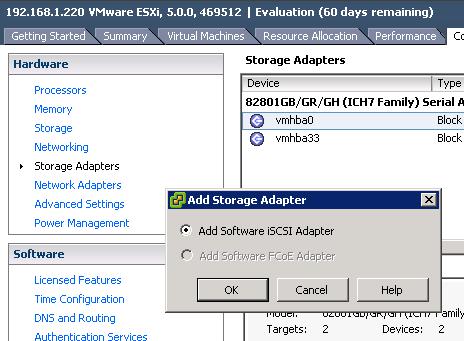
  3. Pilih tab Configuration | Storage
  4. Pilih Storage Adapter, Pilih Add
    `
  5. Klik OK pada saat muncul pesan “Add Software iSCSI Adapter”
  6. Pilih SCSI adapter yang baru ditambahkan. Perhatikan bahwa device dan path-nya masih terdeteksi 0 (nol), artinya belum ada iSCSI volume yang dimount
    `
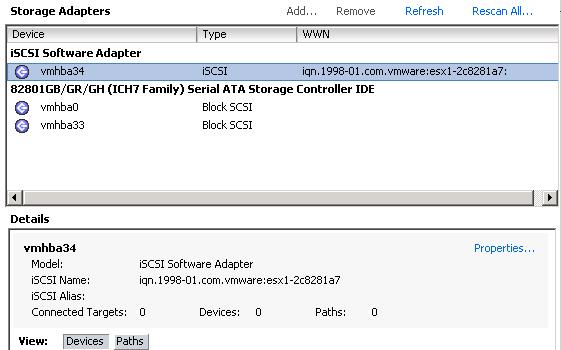
  7. Klik Properties
  8. Pilih tab Dynamic Discovery dan tekan tombol Add
  9. Isikan IP dari iSCSI server (dalam hal ini IP FreeNAS). Jika perlu, klik CHAP jika saat melakukan konfigurasi iSCSI kita menggunakan CHAP untuk authentikasi user (pada artikel sebelumnya saya tidak menggunakan CHAP authentication sehingga disini saya pilih None untuk authentication)
    `
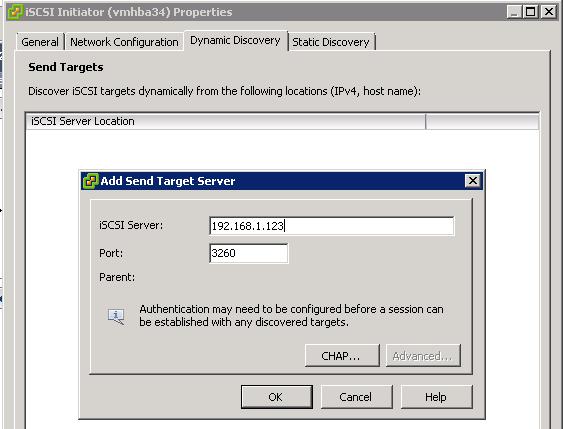
  10. Klik OK
  11. Pindah ke tab Static Discovery. Mestinya sudah ada target yang terdeteksi
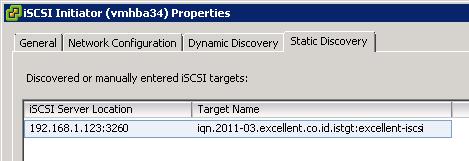
  12. Klik Close. Klik Yes jika ada pertanyaan untuk refresh iSCSI target
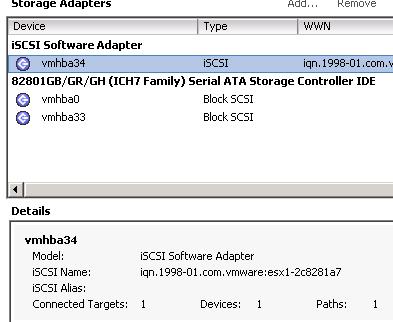
  13. Kini pada bagian Connected Target, Device dan Path sudah terdeteksi ada 1 target
    `
  14. Pilih menu Storage pada panel menu disisi kiri
  15. Pilih menu Add Storage
  16. Pilih Disk/LUN sebagai pilihan
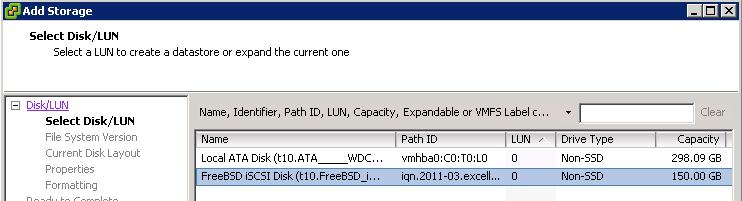
  17. Pilih iSCSI LUN yang sudah dibuat sebelumnya (otomatis terdeteksi). Jika tidak terdeteksi, kemungkinan ada kesalahan konfigurasi iSCSI
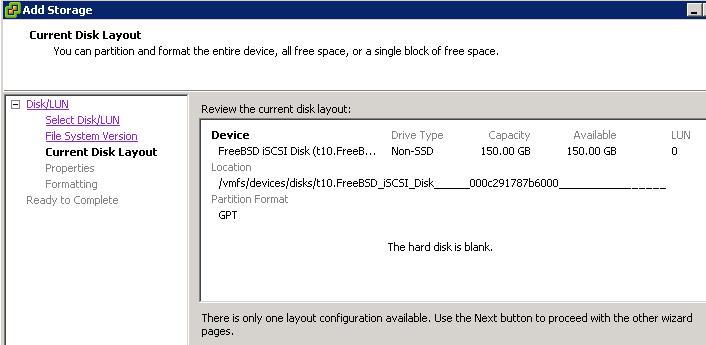
  18. Pilih tipe partisi VMFS-5
  19. Pilih nama datastore
  20. Pilih ukuran volume yang akan digunakan
  21. Klik Finish dan tunggu beberapa saat sampai iSCSI network storage bisa dipergunakan untuk VM yang akan dibuat
    `
    `
Setelah disetting, kita bisa menggunakan FreeNAS iSCSI share tersebut sebagai datastore untuk menyimpan data VM. iSCSI share untuk datastore VM ini juga bersifat shared storage, artinya beberapa host vSphere yang berbeda bisa mengakses datastore yang sama sehingga iSCSI share milik FreeNAS bisa digunakan untuk keperluan feature business continuity seperti feature VMWare vSphere vMotion untuk keperluan Live Migration.

FreeNAS iSCSI SAN Storage VMWare VSphere
Prev

Tips VMWare vSphere : FreeNAS iSCSI Share untuk vSphere Network Storage/Datastore-Bagian Pertama

Next

Training Linux Fundamental & Advanced Server (Migrasi Windows Linux) 05-06 Mei 2012

Related Posts

BlogResourceZimbra
January 26, 2013

Tips Zimbra : Membatasi Pengiriman ke User Tertentu/Distribution List Dengan PolicyD

Read more
1f642.png
BlogBlog & ResourcesTrainingVMWare
February 19, 2019

Suasana Training Virtualisasi Server Berbasis VMware vSphere 6.7

Read more
Screenshot-2019-01-03-17.58.12.png
BlogBlog & ResourcesVMWare
January 4, 2019

Instalasi vCenter Server 6.7 via CLI

Read more

Leave a Reply

Your email address will not be published. Required fields are marked *

Search
Recent Post
  • Zimbra Daffodil 10.1.16 Rilis: Modern Web App Makin Cerdas, Backup Lebih Hemat Storage, dan Peningkatan Keamanan
  • Live Migration vs High Availability di XCP-ng: Perbedaan dan Skenario Penggunaan
  • Informasi untuk Pelanggan PT. Excellent Infotama Kreasindo : Penyesuaian Kebijakan Masa Berlaku Sertifikat SSL/TLS Menuju Standar Keamanan Global
  • Excellent Infotama Kreasindo: Lingkungan Kerja yang Memberi Ruang untuk Bertumbuh
  • Segudang Benefit dari Dana Buffer: Ketika Kebijakan Berangkat dari Pengalaman
Categories
Archives
Featured image: Tips VMWare vSphere : FreeNAS iSCSI Share untuk vSphere Network Storage/Datastore-Bagian Kedua
Get in Touch

KATEGORI

  • Home
  • Artikel
  • Jadwal
  • Event
  • Berita

LAYANAN

  • Zimbra Mail Server
  • Ubuntu
  • XCP-ng
  • Vinchin
  • ASAV
  • Proxmox
  • RHEL
  • Nakivo
  • SMTP Relay
  • SSL Certificate

KONTAK KAMI

PT. Excellent Infotama Kreasindo, Premier Serenity Blok J12, Jl. KH. Agus Salim No. 40E, Bekasi Jaya, Bekasi Timur, Bekasi 17112, Jawa Barat, Indonesia

TENTANG KAMI

PT. Excellent Infotama Kreasindo merupakan entitas bisnis yang fokus pada layanan komputerisasi seperti implementasi sistem, konsultasi, training/workshop, dan maintenance sistem, terutama migrasi dari sistem Windows ke Linux. more…