
logotype
  • Home
  • News
  • Product dan Services
    • Zimbra Mail Server
      • Excellent Managed Services Email
      • Lisensi Zimbra NE
      • Support dan Maintenance
      • MX Backup & ASAV
      • SMTP Relay
    • Proxmox
      • Proxmox Virtual Environment
      • Proxmox Mail Gateway
      • Proxmox Backup Server
    • XCP-ng
    • Red Hat Enterprise Linux
    • Ubuntu Pro
    • Nakivo Backup & Recovery
    • Vinchin Backup & Recovery
    • Lisensi
      • Proxmox Mail Gateway
      • Lisensi Zimbra Network Edition
      • Lisensi Nakivo Backup & Recovery
      • Subscription Zoom
    • Buku Training Mandiri
      • Buku Training Mandiri
      • Ebook Training Mandiri
    • Cloud & Hosting
      • Excellent Managed Services Email Server
      • MX Backup/Anti Spam & Anti Virus
      • SMTP Relay & Mail Gateway
      • Excellent Mail Hosing
    • SSL Sertifikat
  • Training
  • Insight
  • About Us
  • Contacts
logotype
logotype
  • Home
  • News
  • Product dan Services
    • Zimbra Mail Server
      • Excellent Managed Services Email
      • Lisensi Zimbra NE
      • Support dan Maintenance
      • MX Backup & ASAV
      • SMTP Relay
    • Proxmox
      • Proxmox Virtual Environment
      • Proxmox Mail Gateway
      • Proxmox Backup Server
    • XCP-ng
    • Red Hat Enterprise Linux
    • Ubuntu Pro
    • Nakivo Backup & Recovery
    • Vinchin Backup & Recovery
    • Lisensi
      • Proxmox Mail Gateway
      • Lisensi Zimbra Network Edition
      • Lisensi Nakivo Backup & Recovery
      • Subscription Zoom
    • Buku Training Mandiri
      • Buku Training Mandiri
      • Ebook Training Mandiri
    • Cloud & Hosting
      • Excellent Managed Services Email Server
      • MX Backup/Anti Spam & Anti Virus
      • SMTP Relay & Mail Gateway
      • Excellent Mail Hosing
    • SSL Sertifikat
  • Training
  • Insight
  • About Us
  • Contacts
logotype
  • Home
  • News
  • Product dan Services
    • Zimbra Mail Server
      • Excellent Managed Services Email
      • Lisensi Zimbra NE
      • Support dan Maintenance
      • MX Backup & ASAV
      • SMTP Relay
    • Proxmox
      • Proxmox Virtual Environment
      • Proxmox Mail Gateway
      • Proxmox Backup Server
    • XCP-ng
    • Red Hat Enterprise Linux
    • Ubuntu Pro
    • Nakivo Backup & Recovery
    • Vinchin Backup & Recovery
    • Lisensi
      • Proxmox Mail Gateway
      • Lisensi Zimbra Network Edition
      • Lisensi Nakivo Backup & Recovery
      • Subscription Zoom
    • Buku Training Mandiri
      • Buku Training Mandiri
      • Ebook Training Mandiri
    • Cloud & Hosting
      • Excellent Managed Services Email Server
      • MX Backup/Anti Spam & Anti Virus
      • SMTP Relay & Mail Gateway
      • Excellent Mail Hosing
    • SSL Sertifikat
  • Training
  • Insight
  • About Us
  • Contacts
Blog Post
ResourceVMWare

Tips VMWare vSphere : Memaksa Virtual Machine Masuk ke BIOS

April 19, 2012by Masim Vavai Sugianto

Salah satu proses krusial pada instalasi Virtual Machine adalah menghentikan sistem agar masuk ke sistem BIOS. Tujuannya antara lain agar kita bisa mengubah susunan booting sistem seperti halnya pada komputer fisik.

Untuk memaksa VM agar VM booting kedalam BIOS, lakukan hal sebagai berikut :

  1. Pilih VM yang diinginkan
  2. Klik kanan, pilih Edit Setting
  3. Pilih menu tab Options tab dan lihat dibagian Advanced | Boot Options.
  4. Berikan tanda centang pada bagian Force entry into the BIOS setup screen the next time the virtual machine boots
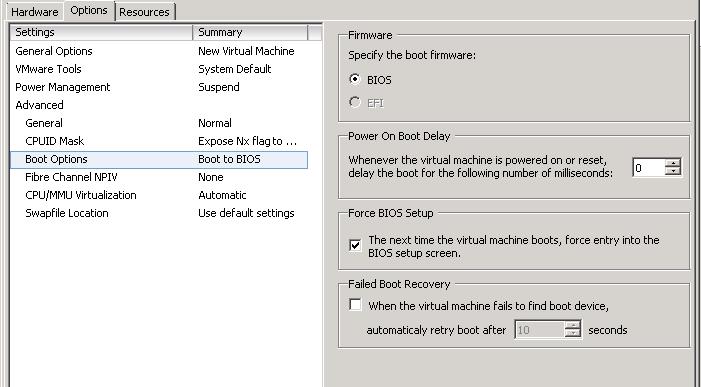
Apa salah satu contoh penggunaan dari BIOS Setting diatas? Salah satu contoh penggunaannya adalah jika kita ingin melakukan instalasi sistem operasi VM melalui file ISO yang ada di host server, atau menggunakan file ISO yang ada pada mesin client (tempat vSphere Client terinstall) atau justru menggunakan CD/DVD ROM yang ada pada Client.

Sebagai contoh, berikut adalah konfigurasi instalasi sistem untuk VM jika menggunakan file ISO/CD/DVD milik client :

  1. Pada modus Edit Seting, Klik pada bagian CD/DVD VM
  2. Untuk Device Type, pilih Client Device
  3. Pilih Passthrough IDE. Untuk pilihan Emulate IDE hanya berfungsi jika menggunakan CD/DVD milik host server
  4. Jangan lupa set agar VM masuk ke BIOS sehingga pada saat booting VM akan otomatis masuk ke modus BIOS
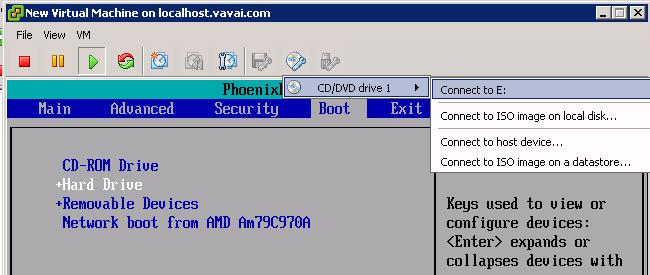
  5. Klik icon CD/DVD dan pilihlah koneksi CD/DVD VM dengan CD/DVD yang diinginkan dari klien (lihat ilustrasi gambar dibawah ini)
  6. Set agar CD/DVD ROM menjadi default boot (dengan menekan tombol –) kemudian keluar dari BIOS sambil menyimpan pilihan boot yang sudah diubah
Install Tips VM VSphere
Prev

Migrasi Zimbra Mail Server dengan ZeXtras Migration Tools-Bagian Pertama

Next

Instalasi FreeNAS untuk Network Storage VMWare vSphere

Related Posts

ResourceVMWare
April 20, 2012

Tips VMWare vSphere : FreeNAS iSCSI Share untuk vSphere Network Storage/Datastore-Bagian Kedua

Read more
ResourceSLES, RHEL & Zextras
September 30, 2012

Instalasi & Konfigurasi Samba 4 Sebagai Active Directory Server Bagian 5-NTP Server & Join Domain

Read more
HeadlineResource
September 30, 2014

Update Bash untuk Antisipasi Shellshock Bug pada SUSE Linux Enterprise Server (SLES)

Read more

Comment(01)

  1. By Rosada
    May 6, 2012

    Thanks tutorialnya… ^^

Leave a Reply

Your email address will not be published. Required fields are marked *

Search
Recent Post
  • Zimbra Daffodil 10.1.16 Rilis: Modern Web App Makin Cerdas, Backup Lebih Hemat Storage, dan Peningkatan Keamanan
  • Live Migration vs High Availability di XCP-ng: Perbedaan dan Skenario Penggunaan
  • Informasi untuk Pelanggan PT. Excellent Infotama Kreasindo : Penyesuaian Kebijakan Masa Berlaku Sertifikat SSL/TLS Menuju Standar Keamanan Global
  • Excellent Infotama Kreasindo: Lingkungan Kerja yang Memberi Ruang untuk Bertumbuh
  • Segudang Benefit dari Dana Buffer: Ketika Kebijakan Berangkat dari Pengalaman
Categories
Archives
Featured image: Tips VMWare vSphere : Memaksa Virtual Machine Masuk ke BIOS
Get in Touch

KATEGORI

  • Home
  • Artikel
  • Jadwal
  • Event
  • Berita

LAYANAN

  • Zimbra Mail Server
  • Ubuntu
  • XCP-ng
  • Vinchin
  • ASAV
  • Proxmox
  • RHEL
  • Nakivo
  • SMTP Relay
  • SSL Certificate

KONTAK KAMI

PT. Excellent Infotama Kreasindo, Premier Serenity Blok J12, Jl. KH. Agus Salim No. 40E, Bekasi Jaya, Bekasi Timur, Bekasi 17112, Jawa Barat, Indonesia

TENTANG KAMI

PT. Excellent Infotama Kreasindo merupakan entitas bisnis yang fokus pada layanan komputerisasi seperti implementasi sistem, konsultasi, training/workshop, dan maintenance sistem, terutama migrasi dari sistem Windows ke Linux. more…